Blender to transparent video with cross-browser support
Transparent video has been supported by browsers for a while, but it's one of those things I don't need to do very often and each time involves a lot of hunting to remind myself what the right codecs and ffmpeg commands are. This is as much for you as it is for me! This workflow starts with video coming from Blender as that was my specific use case this time around, however, from there on in you can apply this process to any webm video to get the correct fallback format for Safari.
The goal
- Render a 3D animation in Blender
- Preserve the transparent background
- Keep the file size small enough for the web
- Support modern browsers
A PNG sequence would work, but the file sizes are huge, GIF would also work, but the quality is terrible and the file sizes are huge. Video is the obvious answer - if you can keep the alpha channel! Of course, another option would be to render some actual 3D, but I'm not going to go into that here (even though that is a great option and one I could help with ;)).
Here's a simple scene I setup in Blender for this demo (the bust rotates 360 degrees). "Marcus Aurelius" 3D model by GSXNet is licensed under CC Attribution-NonCommercial-ShareAlike.
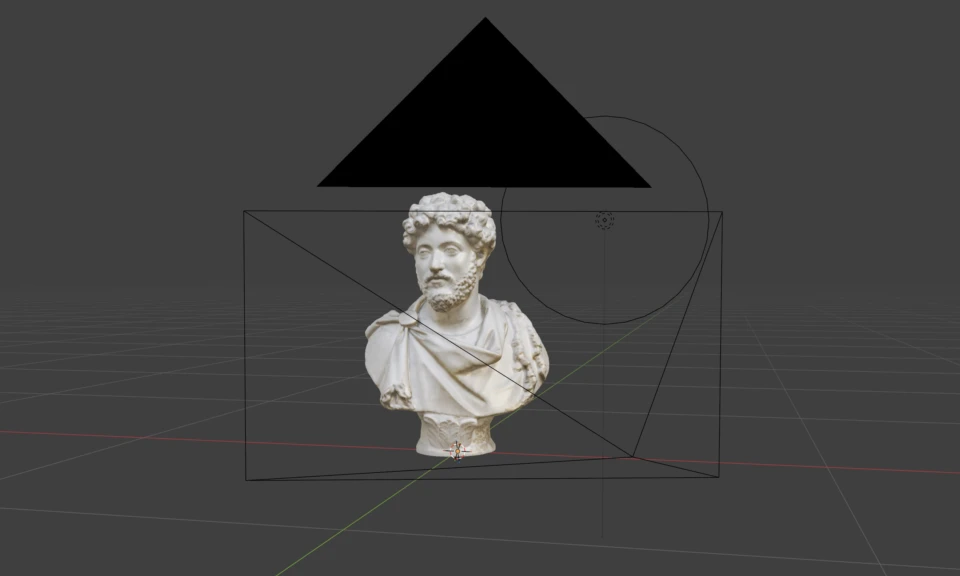
A basic scene I set up in Blender using the "Marcus Aurelius" 3D model
The browser reality
Since there isn't one transparent video format that works everywhere, the current practical approach is:
| Browser | Format |
|---|---|
| Chrome | VP9 WebM with alpha |
| Firefox | VP9 WebM with alpha |
| Safari | HEVC with alpha |
So we need to generate both versions.
Step 1: Render from Blender
The first step is making sure Blender actually includes the alpha channel.
In Blender:
- Open Render Properties
- Expand the Film panel
- Enable Transparent
Then in Output Properties:
- Set File Format to FFmpeg Video
- Under Encoding, set Container to WebM
- Set Video Codec to WebM / VP9
Render your animation - the result is a transparent WebM file that works directly in Chrome and Firefox. It would be nice to call it a day, but Safari says no.
Step 2: Create the Safari version
Safari uses HEVC with alpha and FFmpeg can convert the VP9 WebM into the required format:
ffmpeg -c:v libvpx-vp9 -i input.webm -c:v hevc_videotoolbox -alpha_quality 1 -q:v 25 -tag:v hvc1 -c:a pcm_s16le output.movThis gives you a second file with the same animation and a preserved alpha channel.
Step 3: Add it to your website
The HTML is simple:
<video autoplay muted loop playsinline>
    <source src="animation.mov" type="video/mp4">
    <source src="animation.webm" type="video/webm">
</video>
The browser will select the format it supports.
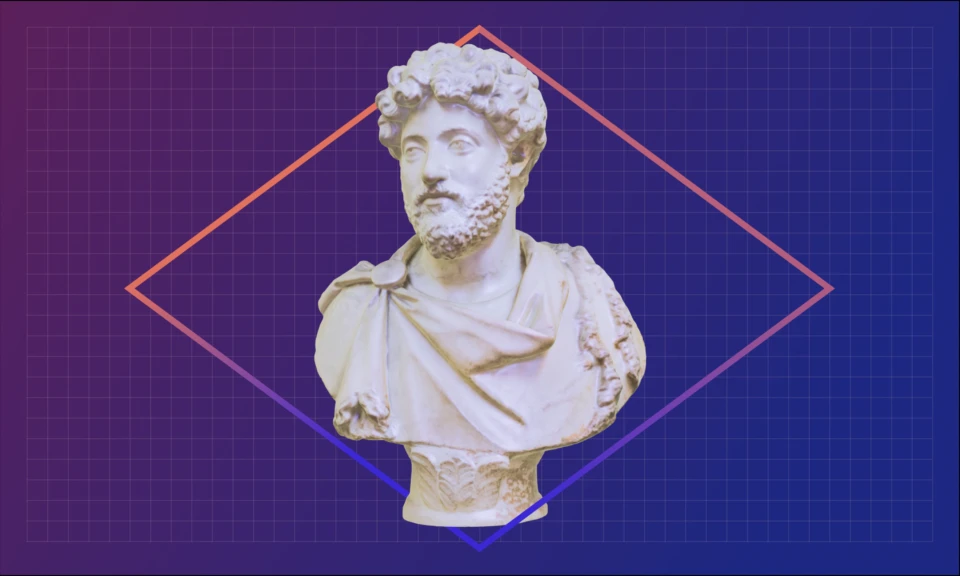
Here's the end result - Marcus Aurelius perfectly isolated against a transparent backdrop
Why this is useful
This opens up some really nice possibilities:
- 3D product animations
- Floating objects and effects
- Motion graphics
- Hero section animations
- UI decoration
- Anything that would previously have been an animated GIF
The big advantage is that you get the quality of video with the flexibility of transparency.